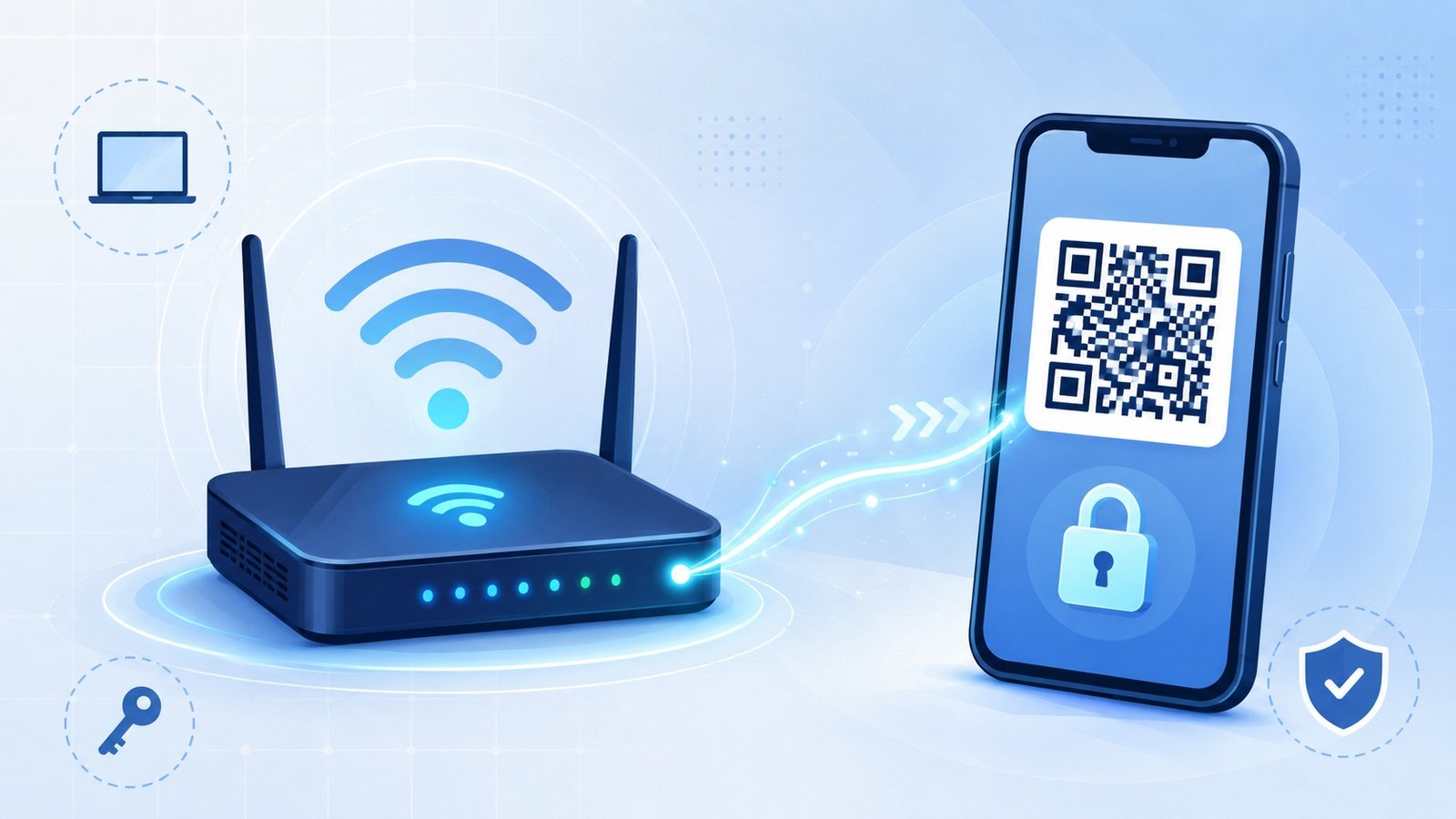
Forgetting a WiFi password is one of those small annoyances that feels bigger than it is — especially when the device you need is already connected, but the one you’re holding isn’t. The good news is you don’t need any hacking skills, sketchy apps, or “password cracker” software to solve this. Every method below is completely legal, built right into the operating systems and routers you already own, and works whether you’re on Windows, Mac, Android, or iPhone.
Here are five legitimate, tested ways to recover a WiFi password in minutes.
1. Check the Router Label Itself
This is the most overlooked trick, and it works even if you’ve never touched the router’s settings before. Almost every home router ships with a sticker on the back or bottom that lists the default network name (SSID) and default password.
If nobody has manually changed the password since installation, this sticker still works. Look for fields labeled:
- Wireless Network Name (SSID)
- Wireless Password / WiFi Key
- Network Key
- PIN
Pro tip: If the sticker password doesn’t work, someone has likely changed it — but the sticker will still show you the router’s IP address, admin username, and admin password, which brings us to method #2.
2. Log Into the Router’s Admin Panel
Every router has a web-based control panel that stores the current WiFi password in plain text or lets you reset it. This is the most reliable method because it pulls the actual live password, not a guess.
Steps:
- Connect a device to the router via Ethernet cable (or WiFi, if you’re already connected on another device).
- Open a browser and type the router’s IP address — commonly
192.168.1.1or192.168.0.1. - Log in using the admin credentials (often printed on the same sticker as above; common defaults are
admin/adminoradmin/password). - Navigate to Wireless Settings or WiFi Setup.
- Look for the Password, Security Key, or Passphrase field.
Some routers hide the password behind dots. Simply click the small “eye” icon or checkbox that says “Show Password” or “Show Characters” to reveal it instantly.
Common Router IP Addresses by Brand
| Router Brand | Default Gateway IP | Default Admin Login |
|---|---|---|
| TP-Link | 192.168.0.1 | admin / admin |
| Netgear | 192.168.1.1 | admin / password |
| D-Link | 192.168.0.1 | admin / (blank) |
| Linksys | 192.168.1.1 | admin / admin |
| Asus | 192.168.1.1 | admin / admin |
(Always check the sticker first — manufacturers occasionally change these defaults.)
3. Recover It From a Device That’s Already Connected
If a laptop, phone, or tablet in your house is already connected to the network, you don’t need the router at all. Operating systems store saved WiFi passwords locally, and you can retrieve them without installing anything extra.
On Windows 10/11
- Right-click the WiFi icon in the taskbar and select Network & Internet Settings.
- Click Advanced network settings > More network adapter options, or go to Control Panel > Network and Sharing Center.
- Click on your WiFi network name, then select Wireless Properties.
- Go to the Security tab and check Show characters next to the Network Security Key.
On macOS
- Open Spotlight and search for Keychain Access.
- Search for your WiFi network name in the Keychain list.
- Double-click it, check Show password, and enter your Mac’s admin password when prompted.
On Android
Android hides saved passwords from casual users, but modern versions let you share WiFi via QR code, which indirectly reveals the password:
- Go to Settings > Network & Internet > Internet.
- Tap the gear icon next to your connected network.
- Tap Share and authenticate with your fingerprint or PIN.
- A QR code appears — many apps and even some phone cameras can decode this QR code directly to show the plain-text password.
On iPhone (iOS 16+)
- Go to Settings > WiFi.
- Tap the (i) icon next to your connected network.
- Tap Password, then authenticate with Face ID or your passcode.
Apple added this feature specifically so people could stop guessing — it’s one of the fastest legal methods available today.
4. Use Your ISP’s Official App
Most major internet service providers now offer their own companion app that lets account holders view and even change their WiFi password remotely — no router login required. Examples include apps from providers like Xfinity, Spectrum, AT&T, BT, and Airtel/Jio (depending on your country).
Why this works well:
- It’s tied directly to your account, so there’s no guessing at admin credentials.
- You can often view and reset the password from your phone in seconds.
- It also shows connected devices, so you can spot anyone using your network without permission.
Simply search your ISP’s name plus “app” in your phone’s app store, log in with your account credentials, and look for a WiFi Settings or Network tab.
5. Ask for a QR Code Instead of the Password
This last method isn’t about “finding” the password in the traditional sense — it’s about bypassing the need to know it at all, which is often what people actually want.
If a friend, family member, or coworker has already connected to a network you need access to, ask them to generate a WiFi QR code instead of typing out the password. Both Android and iPhone can create one from the “Share” option mentioned above. You then simply scan the code with your camera, and your device joins the network automatically — the actual characters of the password are never displayed or typed.
This is increasingly the standard for cafes, offices, and Airbnb rentals too. Property hosts often laminate a QR code near the router specifically so guests never need to ask what the password is.
A Quick Note on What NOT to Do
It’s worth being clear: none of the methods above involve accessing a network you don’t have permission to use. Legitimate WiFi recovery always relies on:
- Physical access to the router, or
- A device already authorized on that network, or
- Official account credentials with the ISP
Third-party “WiFi password hacker” apps and websites that claim to crack a neighbor’s network are not legal, rarely work, and are frequently malware in disguise. Stick to the built-in tools above — they’re faster, safer, and require nothing more than what you already own.
Final Thoughts
Losing track of a WiFi password doesn’t have to mean a call to tech support or an awkward text to whoever set up the router originally. Between the physical label, the admin panel, your device’s saved credentials, your ISP’s app, and simple QR sharing, you have five completely legitimate paths to get back online in under five minutes. Bookmark this guide — the next time a guest asks “what’s the WiFi password?” you’ll have the answer before they finish the question.